


The developer of RegCleaner, jv16 PowerTools, Uninstalr, WinFindr, Startup Timer, ScreenshotX, System Examiner and Windows Update Fixer.
Do you experience malware problems, persistent system issues, slow performance, or want to sell the computer, and think a factory reset is the way to go?
We’re here to help you with that.
In this article, we’ll explain how to factory reset Windows 11 in detail. We’ll also touch on the difference between a factory reset and a clean install. Both of them seem similar at first glance, but they’re quite different. For example, a factory reset is more convenient and enables you to keep your files, while a clean install requires extra steps and will turn your computer into a blank slate.
For the factory reset guide in Windows 10, please visit this article.
Table of Contents
Factory reset versus clean install
Before getting into the details on how to factory reset Windows 11, let’s briefly discuss the difference between a factory reset and a clean install because they often get mixed up.
Factory reset in Windows 11 is done with the Reset this PC feature. Reset this PC is a built-in Windows operating system feature that allows you to perform a factory reset, a.k.a restoring your PC in its original factory settings, just like when you first received your computer from the store. This means all preinstalled apps from the manufacturer will also be restored if your computer comes with them.
Reset this PC has two recovery options/types of reset, which are:
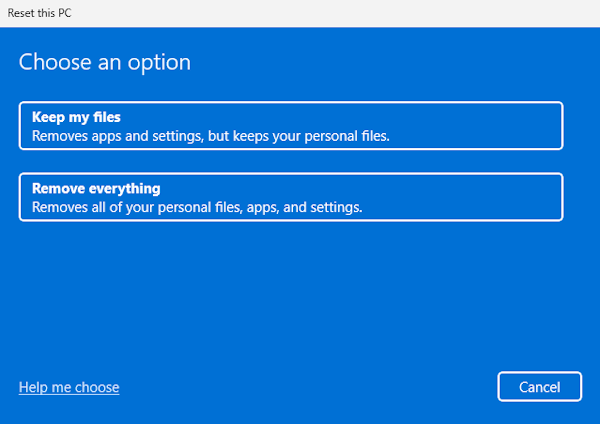
- Keep my files
Also known as “refresh”, this option will reinstall Windows, remove installed apps and saved settings, and allow you to keep your personal files, such as documents and photos. - Remove everything
Also known as “reset”, this option will reinstall Windows and remove installed apps, saved settings, and personal files.
In addition, Reset this PC also has two reinstallation methods, which are:
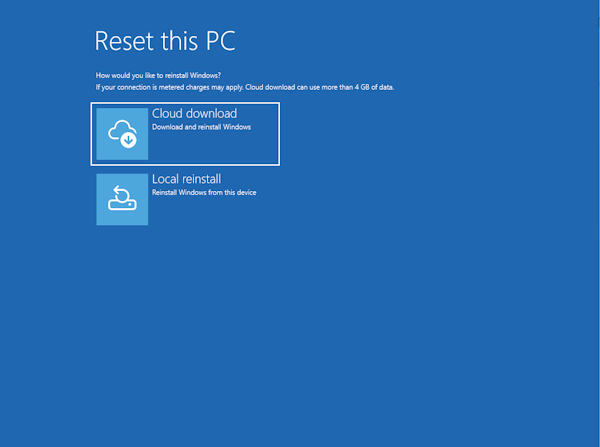
- Cloud download
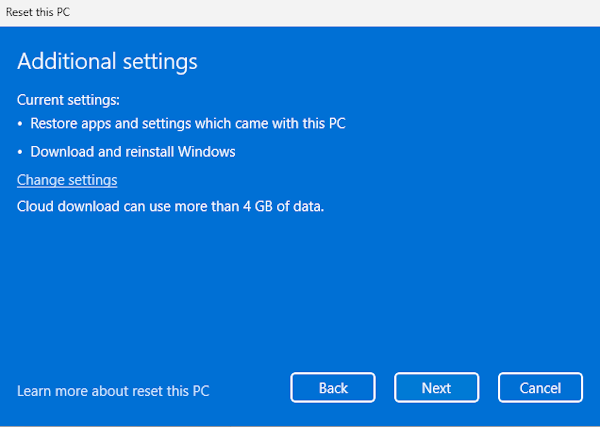
This reset option will download a fresh copy of Windows from the cloud so you can get the latest Windows version and software updates. Bear in mind that you need an active internet connection for this. - Local reinstall
This reset option will reinstall Windows using files that already exist on your computer.
Meanwhile, clean install refers to the process of (re)installing Windows in a clean, blank state. This means removing all of the previous data, installed apps, and preinstalled apps from the manufacturer, and starting over with the new Windows operating system.
Keep in mind the difference between the two and choose the option that suits your situation best.
What to prepare before before factory reset
Before performing a factory reset using the Reset this PC feature, you need to take some safety precautions, such as:
- Create a backup of your important data, personal files, passwords, browser bookmarks, settings, etc, preferably using a 3-2-1 backup strategy. This basically means that you need to create three data copies on two types of storage (such as using a USB flash drive and a cloud backup service) in at least one off-site location.
- Since the Reset this PC feature will remove all of the installed programs, you need to create a list of programs that you want to reinstall.
- If you choose “Keep my files” as a reset type, you’ll need to make sure that you have Bitlocker recovery key associated to your device and the password associated with your Microsoft account.
- Make sure you have an active internet connection, especially if you want to keep your files and opt for Cloud download as a reinstallation method.
How to factory reset Windows 11
There are two ways to do a factory reset using Reset your PC: from Windows settings or the recovery environment. Below is the step-by-step guide on using both options.
Factory reset Windows 11 from Windows Settings
You can factory reset Windows 11 from Windows Settings. Here’s the step-by-step to do it:
- Open the Settings menu by looking up “Settings” from the Windows search bar or clicking the Windows start button > clicking the gear icon.
- In the new Settings window, select “System” from the left side menu > select “Recovery”.
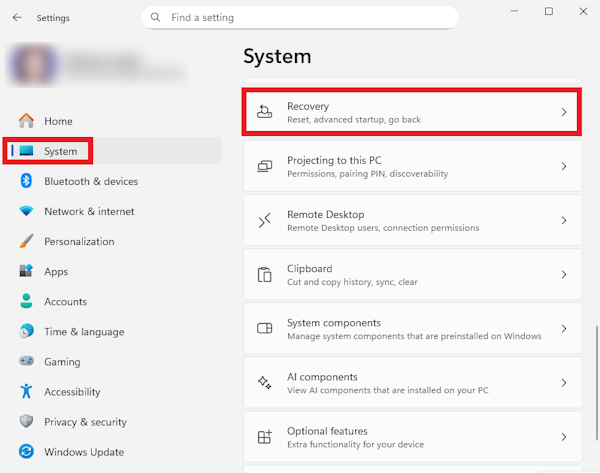
- Under the “Recovery options” menu, select Reset this PC > click the Reset PC button.

- In the new window, select the recovery mode; you can either choose “Keep my files” or “Remove everything”. If you’re not sure which, you can click the “Help me choose” option on the bottom left of the window.
- Next, choose the reset method; you can either choose cloud reset (cloud download) or local reset (local reinstall). If you’re unsure which, you can click the “Help me choose” option on the bottom left of the window.

- Review additional settings on the next screen, then click the “Next” button.
- Review the summary of reset instructions. If everything looks good to you, click the “Reset” button.

- Wait until the factory reset process completes and follow the instructions after reinstallation.

Factory reset Windows 11 from the recovery environment
You can also factory reset Windows 11 through Windows recovery environment/Windows recovery mode. Here’s how:
- Prepare and write down your BitLocker recovery keys on a piece of paper. You can access your keys from aka.ms/myrecoverykey or follow this instruction on Microsoft help page.
- Access the recovery environment by holding the shift button while performing a restart (clicking the Windows button > clicking the power button > selecting restart).
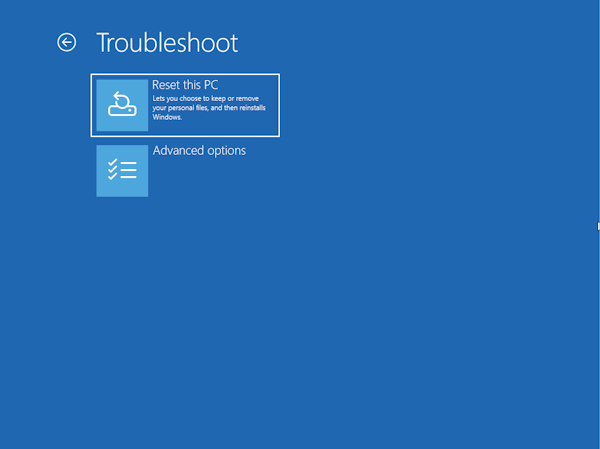
- In the recovery environment, select “Troubleshoot”.
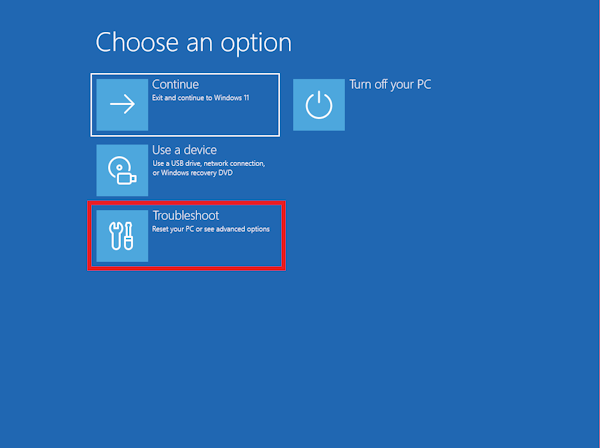
- In the new screen, select “Reset this PC”.
- Select one of the preferred reset options. If you’re not sure which, you can refer to this help article from Microsoft.

- Enter the recovery key you prepared from the previous step and hit Enter.

- In the next screen, select the reinstallation method. If you’re unsure whether you want to choose cloud download or local reinstall, you can refer to this help article from Microsoft.
- Review the summary of reset instructions. If everything looks good, click the “Reset” button.

- Wait until the factory reset process completes and follow the instructions after reinstallation.
What to do after a factory reset
There are some additional things you need to do after resetting your PC, such as:
- Run initial system updates and then regularly check for new updates by accessing the “Windows Update” menu from the settings app. You can also adjust how and when you want to install updates under the ‘Advanced options’ menu in Windows Update.
- Make sure that you have the latest version of drivers after reset. You can do this by following the instructions in this help article.
- If you perform a factory reset to fix malware issues, you can also take a preventive measure by using antivirus software. Windows has a good built-in antivirus called Windows Security. Simply type in “Windows Security” in the Windows search bar to access the feature.
- Reinstall important programs listed in the previous step since factory reset will remove all installed apps.
- If you choose to “remove everything” during a factory reset, you’ll need to transfer back all of the important data and backups to your computer.
Conclusion
There are two ways to factory reset Windows 11 using the Reset my PC feature: through Windows settings and Windows recovery mode/recovery environment. Both ways are convenient, and the steps to do it are fairly straightforward.
It’s advisable to back up your important data before performing a factory reset, in case something unexpected happens in the process.
After a factory reset, it’s important to install important updates, get the latest drivers, and perform a system security check to make sure your computer runs in its tip-top shape.
If a factory reset doesn’t solve your system issues, you may want to consider a clean install. We have a comprehensive guide to do a clean install on Windows 11 here.