


The developer of RegCleaner, jv16 PowerTools, Uninstalr, WinFindr, Startup Timer, ScreenshotX, System Examiner and Windows Update Fixer.
The internet is largely free thanks to advertising. However, over the years, online advertising has grown increasingly intrusive, making the user experience feel worse – part of that is due to pop up notifications.
A pop-up notification (sometimes written as popup notification or pop-up notification) is a small message balloon that pops up on your screen whenever you’re visiting a website. It can take the form of a closable notification bubble, which often disappears on its own if you don’t interact with it – unlike conventional pop-up windows, which demand immediate action.
Even though they’re initially designed by online marketers to increase user interaction and engagement, pop up notifications have become more annoying than not. If you’re among the annoyed people and looking for ways to disable pop up notifications on your favorite browser, then this article is exactly for you.
Table of Contents
How to disable pop up notifications
In this article, we’ll show you how to disable popup notifications in popular browsers on your computer.
Disable popup notifications on Google Chrome
By default, Google Chrome automatically blocks pop up notifications. But you can also disable them on your own. Here’s how:
- Open Google Chrome on your computer.
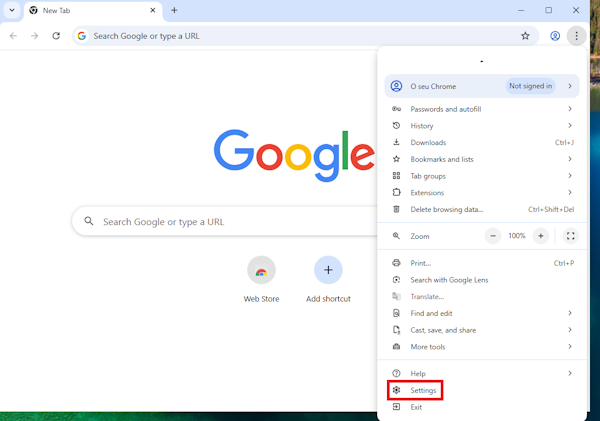
- Click the three dots on the top right of the browser window > scroll down the menu until you find “Settings” and select it.
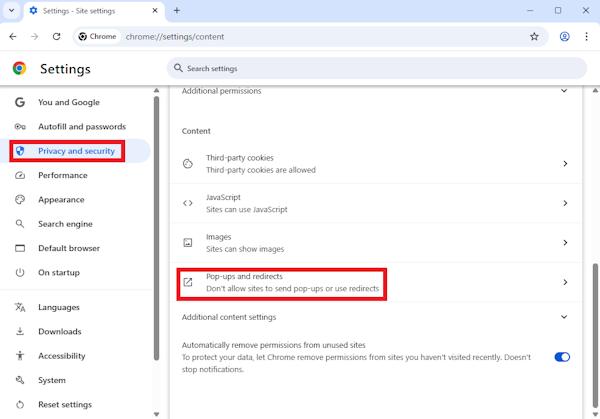
- In the new window, select “Privacy and security” from the left menu > select “Site settings” > select “Pop-ups and redirects”.
Alternatively, you can also type in this shortcut in the address bar to access the menu:
chrome://settings/content/popups
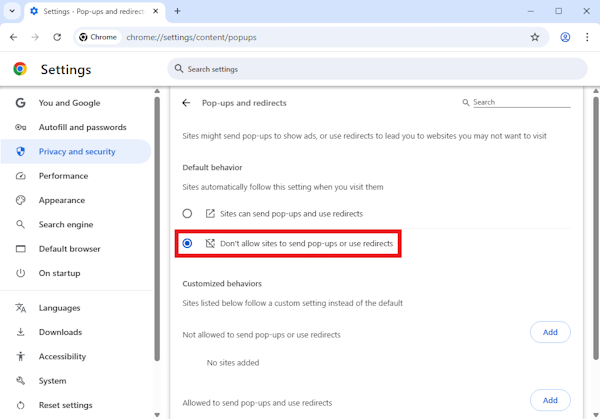
- Under the ‘Default behavior menu’, select “Don’t allow sites to send pop-ups or use redirects”.
To disable all notifications, you can follow these steps:
- Open the “Settings” page as described in the previous steps.
- In the new window, select “Privacy and security” from the left menu > select “Site settings” > select “Notifications”.
Alternatively, you can also type in this shortcut in the address bar to access the menu:
chrome://settings/content/notifications
- Under the ‘Default behavior menu’, select “Don’t allow sites to send pop-ups or use redirects”.
To disable notifications for websites for which you gave permission in the past, you can follow these steps:
- Still on the same page, scroll down to the “Customized behaviors” menu > scroll down to the “Allowed to send notifications” menu.
- Click the three dots next to the website address > select “Remove”.
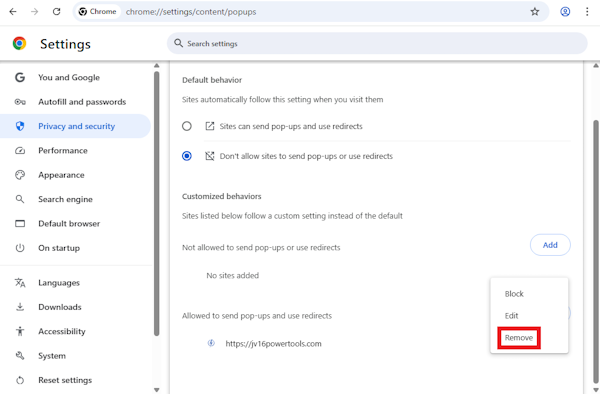
- Repeat the steps to all websites you want to revoke the pop up notifications permission to.
Disable popup notifications on Mozilla Firefox
Here’s how you can disable popup notifications on Mozilla Firefox:
- Open Mozilla Firefox.
- Click the hamburger menu on the top right of the browser window > select “Settings” > in the new window, select “Privacy & Security”.
Alternatively, you can also type in this shortcut in the address bar to access the menu:
about:preferences#privacy
- Scroll down until you find the “Permissions” menu > click the “Settings…” button next to the “Notifications” option.
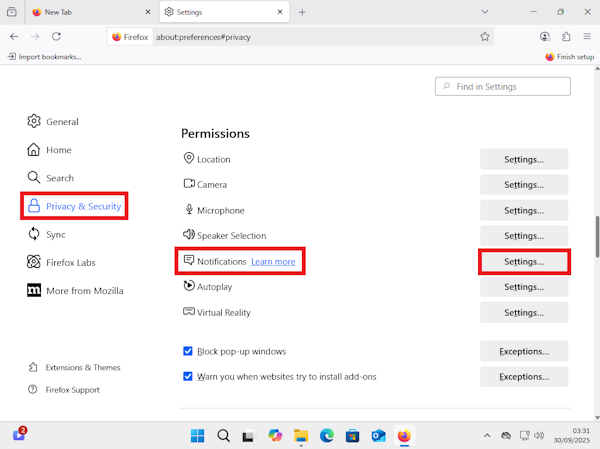
- In the new window, you’ll be presented with a list of websites that have requested to send you notifications. You can select the ones that aren’t legitimate websites, then click the “Remove Website” button, or you can click the “Remove All Websites” button to remove all websites.
- Tick the “Block new requests asking to allow notifications” if you don’t want popup notifications from any website; otherwise, leave the option unticked.
- Click the “Save Changes” button to save your changes.
Disable popup notifications on Microsoft Edge
Here’s how you can disable popup notifications on Microsoft Edge:
- Open Microsoft Edge on your computer.
- Click the three dots on the top right of the browser window > scroll down the menu until you find “Settings” and select it.
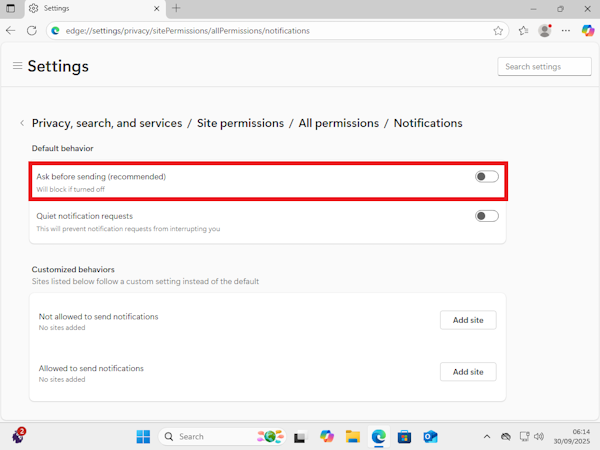
- Select “Privacy, search, and services” from the left side menu > select “Site permissions” > select “All permissions” > select “Notifications”.
Alternatively, you can also type in this shortcut in the address bar to access the menu:
edge://settings/privacy/sitePermissions/allPermissions/notifications
- Under the “Default behavior” menu toggle off the “Ask before sending (recommended)” option. This will prevent future notifications from popping up.
Disable popup notifications on Opera
Here’s how you can disable popup notifications on Opera:
- Open Opera browser
- Click the three dots on the bottom left of the page > under the “Opera Tools” menu, select “Settings”.
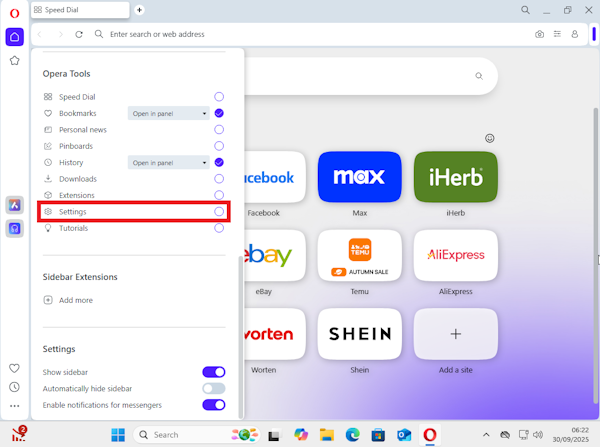
- In the new window, select “Privacy & security” from the left side menu > select “Site settings”.
Alternatively, you can also type in this shortcut in the address bar to access the menu:
opera://settings/content
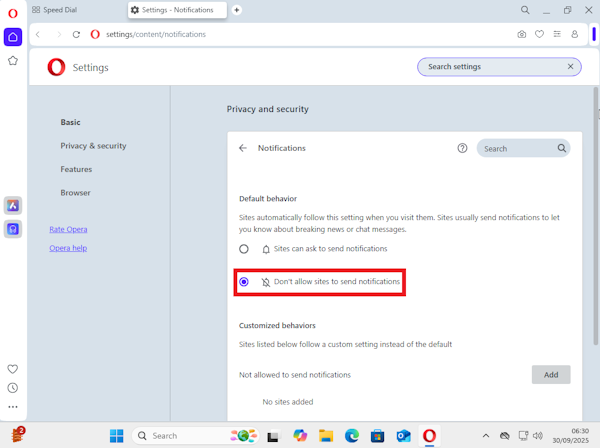
- Under the “Permissions” menu, select “Notifications” > under the “Default behavior” menu, toggle on the “Don’t allow sites to send notifications”. This will block future notifications from popping up.
Tips to prevent unwanted pop up notifications
As they say, prevention is better than cure, so it’s important to prevent unwanted pop up notifications from appearing to begin with. Here are some tips you can consider:
- Use a browser extension or additional plugin that will block ads and unwanted pop up notifications. Since the content in pop up notifications are generally geared towards internet marketing, you can make use of ad blockers for this.
- Leverage the browser’s built-in features to block ads and pop up notifications. Opera, for example, has a built-in ad blocker feature.
- Always be cautious before granting permissions. Most browsers nowadays would ask you to give or reject permissions for websites to send notifications. You need to give permissions only for legitimate websites, and reject when you’re in doubt.
If you’re using DNS services, you can also leverage their additional clean browsing features. You can check out which are the best free DNS services for clean browsing in this article.
Conclusion
Disabling pop up notifications is a simple but important step to improve your user experience. Typically, it’s very easy to do in popular browsers too, as we have covered in the previous section. Some settings are a bit hidden, but you can jump right in by typing in the shortcut in your browser’s address bar.
If you find this article useful, we’d be very happy if you could share this on your social media. It’ll help with our SEO and make our website more discoverable.