


The developer of RegCleaner, jv16 PowerTools, Uninstalr, WinFindr, Startup Timer, ScreenshotX, System Examiner and Windows Update Fixer.
Computers – as the name suggests were originally invented to do computing jobs and only understand numbers. However, humans, as computer users, need readable text to run the machine.
This left a gap in how humans and computers interact, but luckily for us, this is no longer an issue because smart people back in the day already figured out how to bridge the communication between computers and humans: the character map.
What exactly is a character map, and how do you use it? Read this article to find out more.
Table of Contents
What is a character map?
A character map is basically a dictionary that translates various special characters, such as letters, symbols, special signs, and so on into numbers.
The purpose of a character map is to bridge the communication between humans and computers. Since computers can only understand numbers, a character map will convert texts and characters into standardized numbers that specifically represent them.
For example, in a character map, the Latin alphabet “A” is represented as 65 (in numeric code) and U+0041 (in Unicode code point).

Character maps are widely used in our daily lives, even if it doesn’t seem like it. Here are some use case examples where a character map is present:
- Writing an email address that requires the use of a special character @
- Academic writing with mathematical symbols
- Writing documents that contain international characters or foreign languages
- Inserting hypertext markup language / HTML entities for programming needs
- Using emoji for social media captions
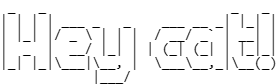
One other example that was quite popular back in the day is ASCII art like the following:
Using character map software
Adding special characters is a simple copy and paste job, thanks to various character map software you can choose from. In this article, we’ll show you how to use Windows’ built-in Character Map software and an alternative website I developed, charactermap.org
Windows Character Map
Microsoft Windows created a built-in utility to view, check the keyboard input, and copy characters to the clipboard instead of typing them called Character Map. This utility displays these character sets:
- Windows
- DOS
- Unicode
Character Map is available in the following Windows versions:
- Windows NT 3.1
- Windows NT 3.5
- Windows NT 3.51
- Windows NT 4.0
- Windows 2000
- Windows XP
- Windows Vista
- Windows 7
- Windows 8
- Windows 8.1
- Windows 10
- Windows 11
Here’s how you can use the character selection feature in Character Map to copy and paste a special character:
- Run the app by typing in “character map” in the search box next to the Windows start menu.
- Click “Character Map” from the search results.
- A new app window will appear; Choose the font family you’ll use.

- Find the character you have in mind, scroll down if needed.
- When you find it, click on the character > click the “Select” button.
- Click the Copy button to copy the character and paste it into your document.
In addition to the above, you can also enable the Advanced view to access other features of Character Map, such as enabling character set and Unicode subset filters, grouping characters by category, and searching by character name or by Unicode code points.
However, Character Map from Windows also has its own limitations. Its interface is outdated, it lacks character organization, it has limited search capabilities, and it also doesn’t allow for cross-platform compatibility.
Online Character Map
I personally use character maps quite often, and I find Windows Character Map lacking. So I decided to build my own online character map, which you can access here: https://charactermap.org/

The way it works is very simple. You can browse all the characters by category (ASCII table, letters, punctuation, numbers, math, symbols, arrows, emojis, and hearts) or use the search bar to search for Unicode characters, including emojis. For example, searching “cat face” in the search bar will give you the result of a cat emoji.

The character grid displays the characters and symbols. You can click on a character to copy it to the clipboard. Clicking the character will copy the character and its currently visible information to the clipboard.
The top right corner of the user interface has a Settings button, which allows you to choose what data you want to see. Namely:
- Numeric code
- Octal code
- Hexadecimal code
- Symbol description
- Unicode code points
- HTML code
Your settings are also saved to a cookie, so the next time you visit the website, you’ll see the exact same view.
Conclusion
Character Map may seem like a foreign concept, but it’s widely used in our day-to-day life – even if we don’t realize it. There are many use cases of it, from programming, academic writing, to a simple act of writing an email address or adding emojis to our texts.
Though you can use Windows’ built-in character map utility, there are other alternatives which are user-friendly and compatible with all devices, such as charactermap.org.
In charactermap.org, you can browse the characters based on their category or look them up in the search bar. You can instantly copy the character with a simple click, too. Not only that, you can also filter the display information by toggling on and off the options in the Settings.
Experience character map made easy by visiting this link: https://charactermap.org/. If you like this tool, please share it on your social media! If you don’t like it, please write to me at hello@greatsoftwarecompany.com so I can make it better for you.