


The developer of RegCleaner, jv16 PowerTools, Uninstalr, WinFindr, Startup Timer, ScreenshotX, System Examiner and Windows Update Fixer.
I’ll never forget the first time I tried to create a folder named CON.
I was in my early days of Windows tinkering, feeling like a total hacker. Then, I came across this forwarded email about “cannot create CON folder,” which I thought sounded like a myth. I decided to try this out myself.
So I right-clicked on File Explorer, selected “New Folder,” typed CON, and hit Enter. Windows responded with a smug error that basically said, “Nope, not happening.” Refreshed my desktop, tried again, and got the same result.
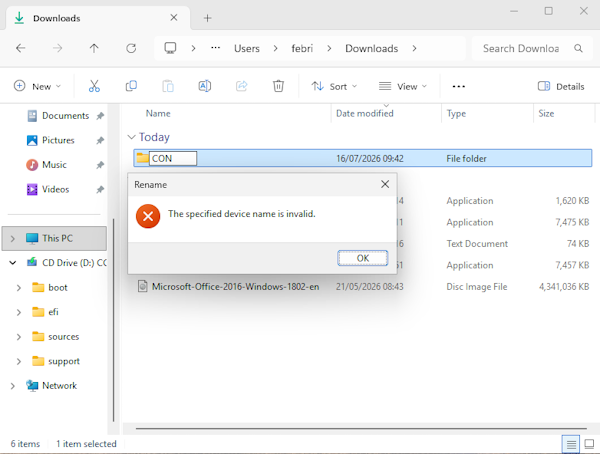
At that moment, I discovered that I had stumbled upon one of the oldest, most stubborn quirks of the Windows universe: you simply can’t create a folder named CON.
It’s a deliberate, decades-old design choice dating back to the days when computers ran on MS-DOS, and people had to type commands to get anything done. It’s an old quirk that even predates Google.
Table of Contents
Why can’t I create a CON folder?
Contrary to the widespread myth, it’s not because Bill Gates personally hates that three-letter combination. It’s simply because CON (along with PRN, AUX, NUL, COM1–COM9, and LPT1–LPT9) is a reserved folder name.
Let’s break this down in a way that doesn’t require a degree in computer archaeology.
Back in the MS-DOS era, operating systems needed a way to talk to hardware: the screen, the keyboard, the printer, the serial port. The clever, economical solution the designers landed on was to treat every device as if it were a file with a fixed, reserved name.
For example, back in the 1980s, if you wanted to copy something from the keyboard to a file in MS-DOS, you’d type something like:
COPY CON myfile.txt
In human language, this means “copy from console to file”. The word CON means console (keyboard input and screen output).
Windows was built on top of DOS so that old software would keep working, and the reserved names came along for the ride. This is still true today. It does not matter whether you are running Windows 95 or Windows 11; the rule sits deep enough in the system that you cannot argue with it.
Try to create or rename a folder as CON, and Windows checks the name against a list it has been carrying around since the DOS days, decides it does not like what it sees, and refuses. There is no setting to turn this off, and honestly I would not recommend one even if there was.
The reason is that lots of very old programs and scripts still talk to CON directly, and none of them expect a folder to ever have that name. If you could make one, things would get confusing fast. You might delete a “folder” that Windows thinks is your keyboard. Chaos would ensue.
List of reserved folder names
The CON folder myth often leads people to believe that only CON is special, but it’s actually a whole family of forbidden names. There are others, too, and each has a specific meaning.
- PRN — the default printer
- AUX — the auxiliary device, usually the first serial port
- NUL — the null device, a bottomless pit that swallows anything you send it and gives back nothing (still genuinely useful today)
- COM1 through COM9 — the serial/communication ports
- LPT1 through LPT9 — the parallel printer ports
- CLOCK$ — the system clock
I love the idea that deep inside my shiny Windows 11 laptop, there’s still a little piece of 1981 keeping an eye on things, making sure I don’t accidentally rename my printer port.
How to create a CON folder
So, is there any way around it? Are we stuck forever with folders named “CON_final” or “CON_do_not_delete”? Not at all.
There are workarounds – and I’m going to share them. But fair warning: one of them is a bit reckless, and the other is a bit sneaky. Proceed at your own risk. If you’re not entirely sure, abort the mission now!
Create a CON folder using Command Prompt
If you absolutely must have a folder called CON – for an old-school prank, to prove a point, or because you lost a bet – there is a way. It involves the CON folder workaround using an extended-path trick that tells Windows to bypass its normal device-name parsing.
You’ll need admin access to Command Prompt, and I recommend you back up your important files first, because this can get weird. I am speaking from experience: I once did this, and my desktop icons did a little jig before Explorer froze. Nothing permanent, but it definitely raised my heart rate.
Here’s the magic incantation:
md \.\C:\path\to\CON
Replace C:\path\to\ with the actual directory where you want the folder. For example, to create a CON folder on your desktop, it might look like:
md \.\C:\Users\YourName\Desktop\CON
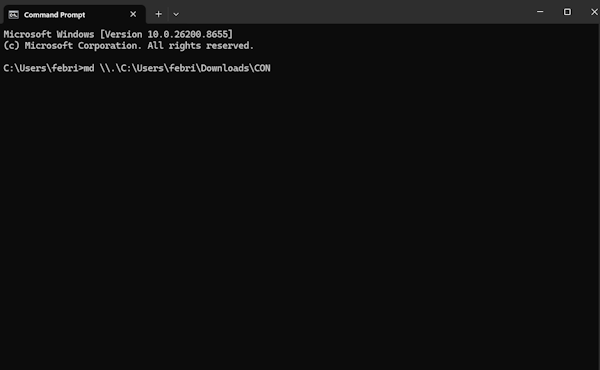
The \.\ prefix is a volume device path. It basically says, “Hey Windows, treat this as a raw file system entry, not as a device name.” And lo and behold, the folder appears. You now have a genuine CON folder.
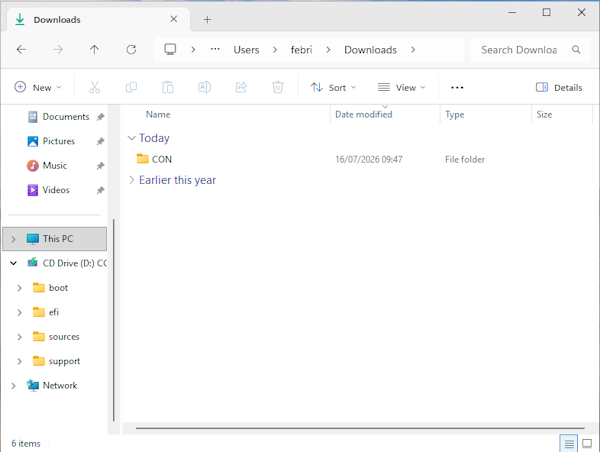
But be careful because it’s fragile. Some programs might crash if they try to access it, and you might not be able to delete it the normal way (you’ll need rd /s \.\C:\path\to\CON in the Command Prompt). And if you’re not careful, you could confuse the system into thinking your keyboard is your folder. I tried this once and ended up having to restart Explorer. Not the end of the world, but definitely not a daily driver.
This method of creating a CON folder works, but it’s more of a party trick than a practical solution. I wouldn’t use it for anything important. And definitely don’t try it on a shared computer unless you want to be that person in the office.
Create a CON folder using a sneaky Unicode trick
If you just want the look of a CON folder without the system headaches, there’s a much safer option: replace a character with a Unicode look-alike (pro tip: you can quickly access these characters from one of my websites: https://charactermap.org/).
For example, instead of the Latin letter “o”, use the Cyrillic “о” (U+043E) or a Greek omicron. The folder will appear to say “CON” on screen because the characters look nearly identical, but the system sees them as completely different code points.
You can also insert a non-breaking space (Alt+0160) after the N, which makes the folder name appear as “CON ” (with a barely visible space). It’s not a true CON folder – scripts and search functions won’t treat it as such – but for file organization, it works perfectly.
The only downside is that it’s technically a different name, so if you’re trying to impress someone who really knows their file systems, they might notice the slight difference in encoding. But for 99% of use cases, it’s perfect.
If you want to be extra sneaky, you can mix multiple look-alikes. There are dozens of Unicode characters that look like C, O, and N when rendered in common fonts. Just don’t try to open the folder from a command prompt with that name – you’ll need the exact Unicode sequence. Stick to clicking, and you’ll be fine.
Should you try to create a CON folder?
Honestly, unless you’re doing it for a laugh or a nostalgia trip, I’d say leave the reserved names alone. The “folder named CON not allowed” rule exists for good reason: backward compatibility with decades of software. It’s a small, harmless quirk that makes Windows feel like it has a secret history. We don’t need to fight it; we can just enjoy the weirdness. Every time I see that error, I imagine a tiny DOS genie inside my laptop shaking its head at me.
But if you do want to experiment, the workarounds are there. Just remember that the extended-path method can be unstable, and the Unicode trick is only cosmetic. The truth about the CON folder is that it’s a relic from a time when computers had fewer graphical interfaces and more command-line shenanigans. I find it weirdly comforting, like finding a rotary phone in a smart home.
So next time you see that error box when you try to create a folder named CON, tip your hat to the old DOS ghosts. They’re still watching over our file systems. And if you absolutely must have that folder, whip out the Cyrillic alphabet or the extended path trick – just don’t blame me if your printer suddenly starts printing the contents of your Downloads folder. I warned you.
If you enjoyed this article, you might enjoy other articles in the Weird Internet Things series: